
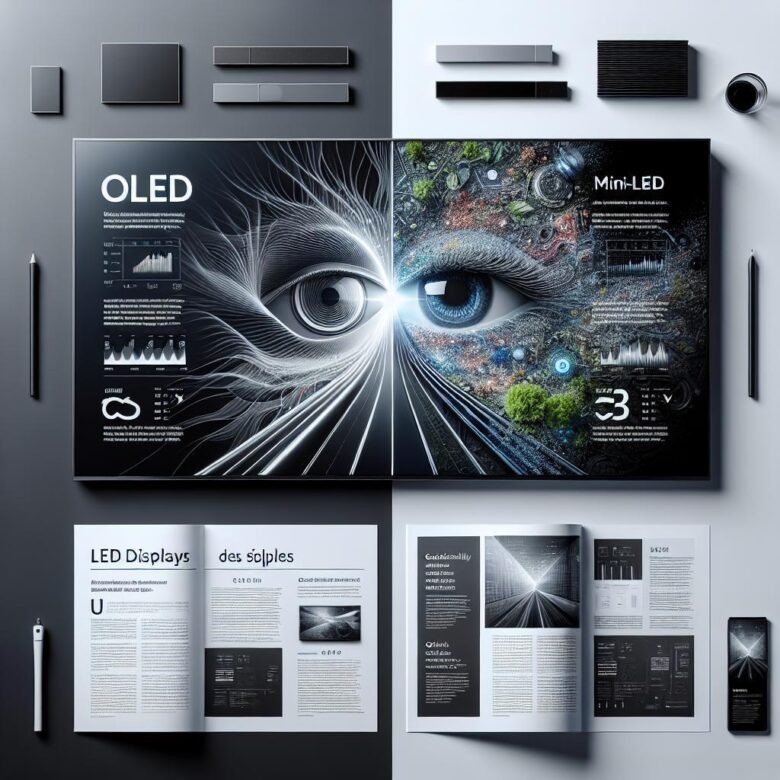
OLED offers perfect blacks but may increase eye strain via PWM flicker; Mini-LED gets brighter and often handles glare better. Comfort depends on flicker sensitivity, brightness, and room lighting.
Month: March 2026
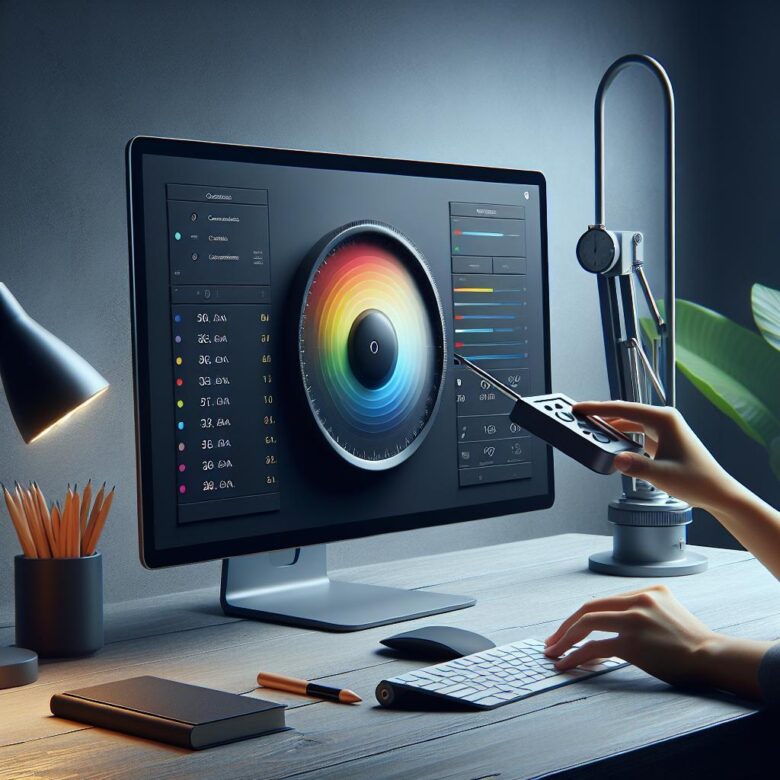
For accurate color, calibrate in neutral lighting, set a proper white point and gamma, then fine-tune brightness with a colorimeter. Recheck regularly to keep edits consistent across devices and print.
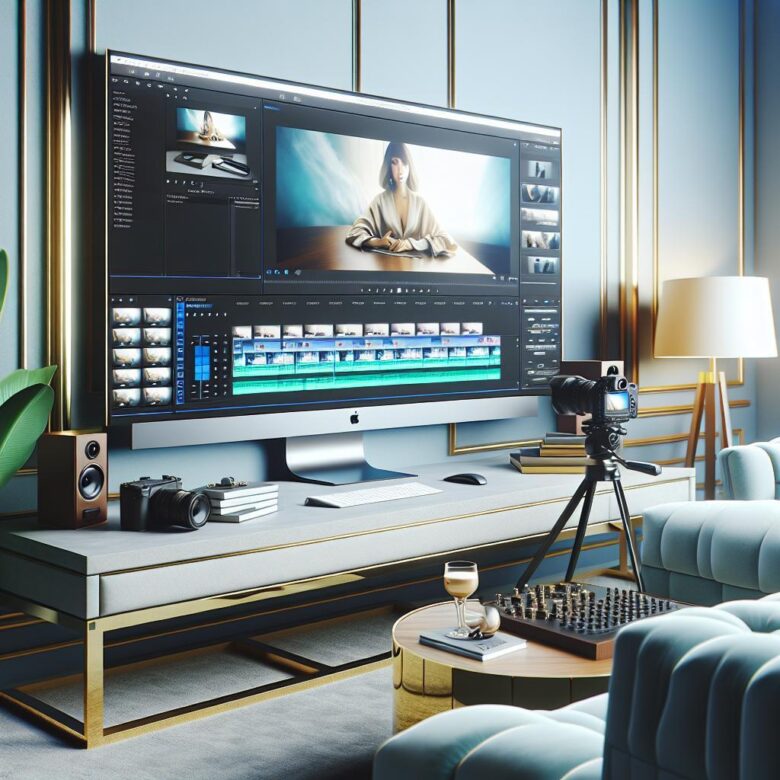
For high-end video editing, choose a monitor with accurate color reproduction, 4K+ resolution, wide gamut support, and reliable hardware calibration to ensure precise grading and consistent output.
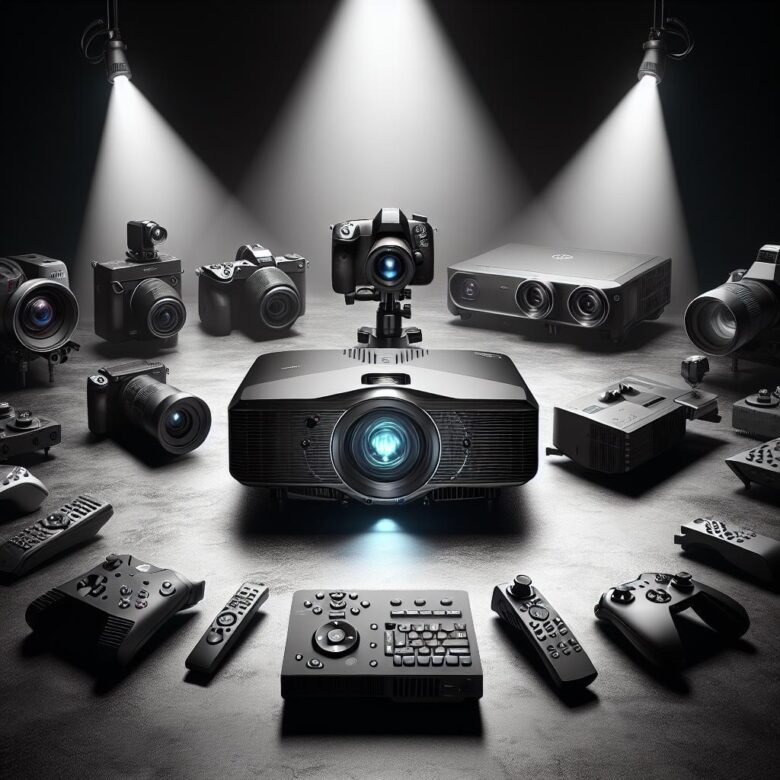
Discover the top 5 gaming projectors for home cinema, chosen for ultra-low input lag, sharp visuals, and smooth gameplay. Compare models that balance fast response with immersive big-screen performance.
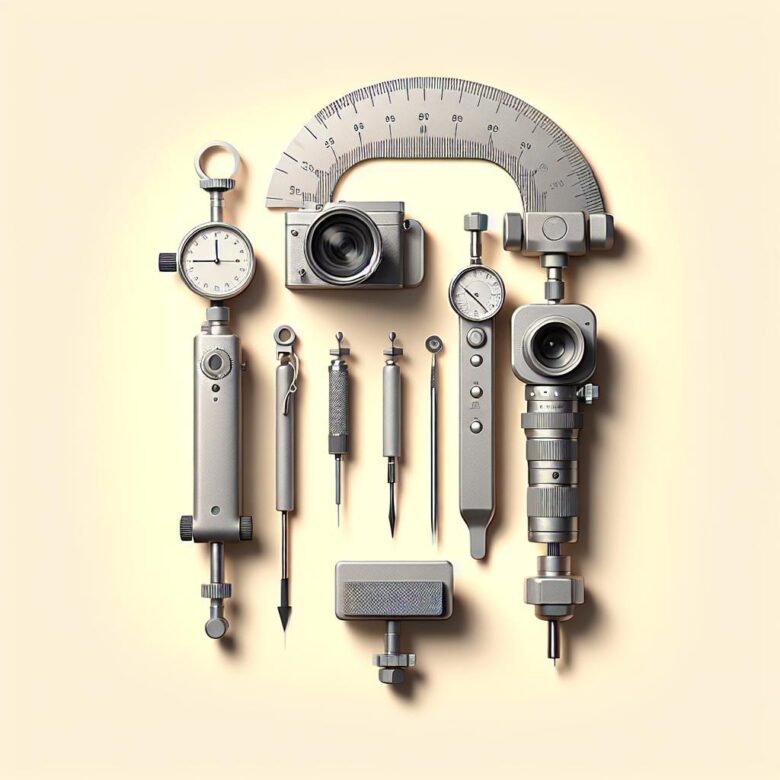
Explore the top 5 calibration tools trusted in professional photography workflows to ensure accurate color, monitor consistency, and reliable print matching from capture to final delivery.

Arrange your triple-monitor setup with the primary display centered, side screens angled inward, and matched resolution settings to reduce eye strain, streamline multitasking, and improve daily workflow.

Position high-definition displays at eye level, about an arm’s length away. Reduce glare, match brightness to ambient light, and scale text properly to lessen neck strain, fatigue, and visual stress.
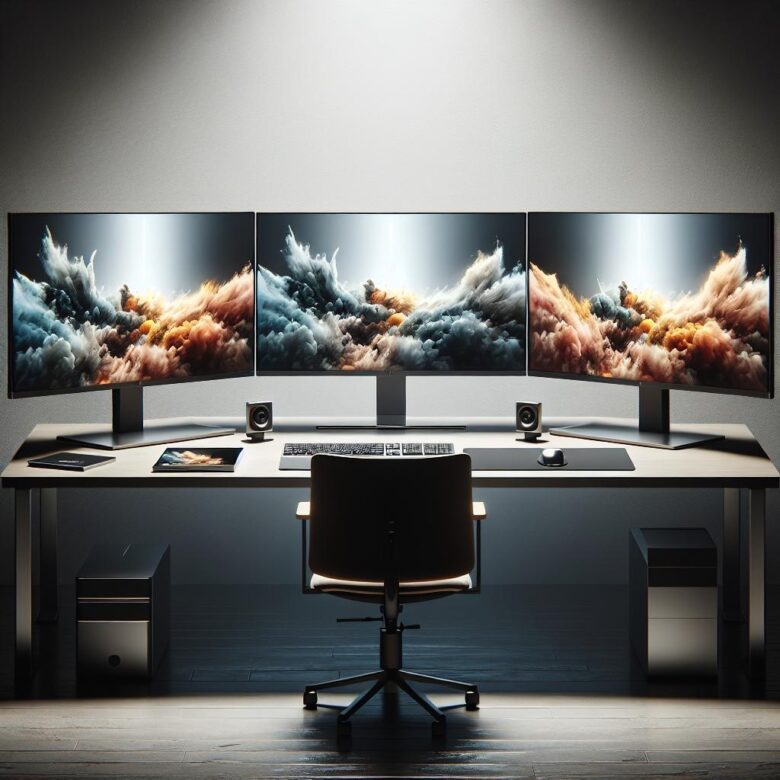
2026’s best ultra-wide monitors boost productivity with expansive screen space, sharp resolution, USB-C connectivity, and ergonomic design-ideal for multitasking, creative work, and streamlined workflows.

For HDR, brightness isn’t just about higher nits-it’s about matching peak luminance to content mastering and room light. Most viewers get the best balance around 600-1,000 nits.
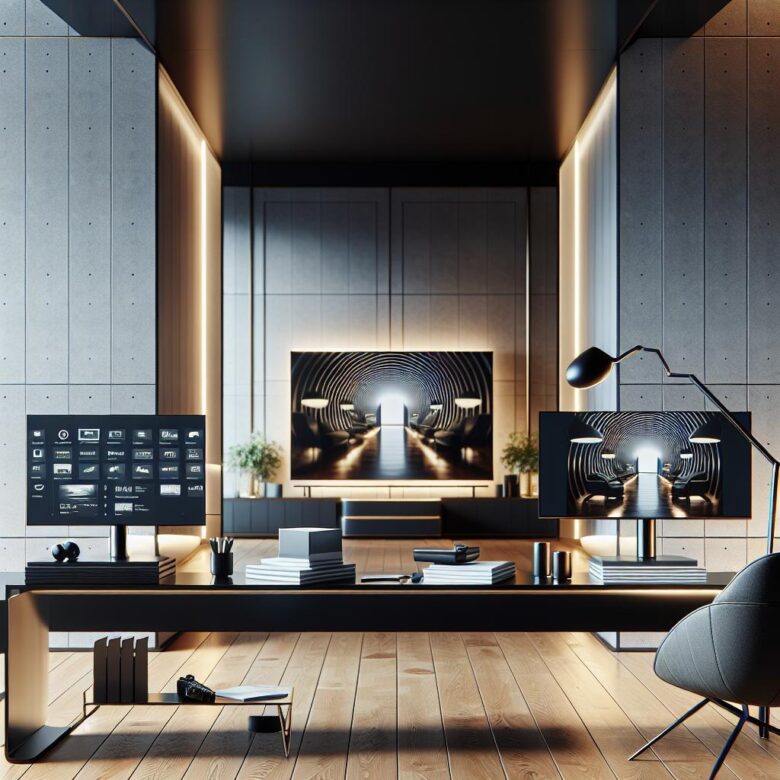
Smart monitors suit home offices with sharper text, USB-C, and lower input lag, while smart TVs offer bigger screens for multitasking and media. Choose based on desk distance, ports, and workflow.