
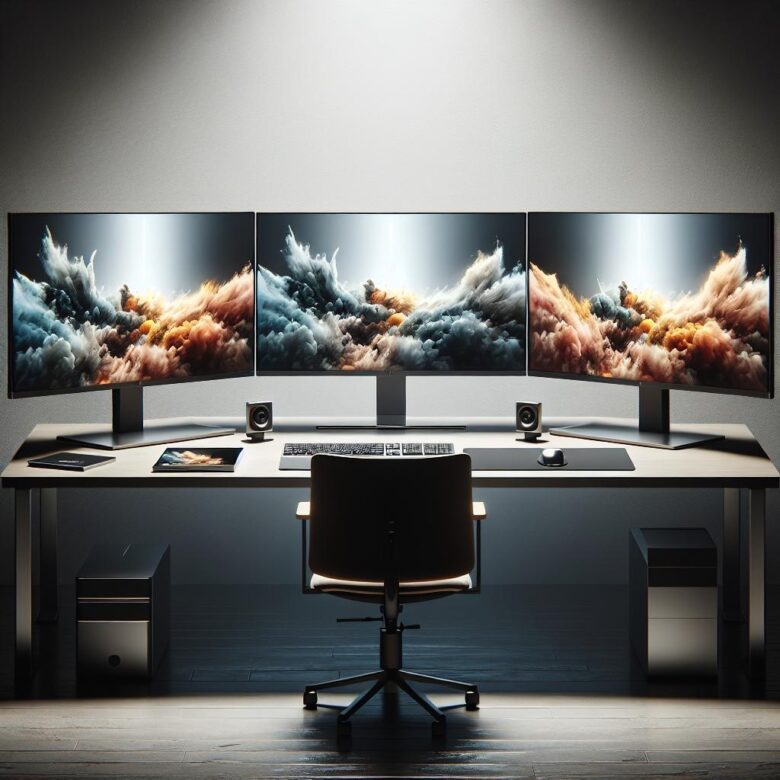
The best ultra-wide monitors for maximum productivity in 2026 are not simply the widest screens you can buy. The right choice depends on how you work, how much vertical resolution you need, how many devices you connect, and whether your desk can handle a 40-inch or 49-inch display comfortably.
An ultra-wide monitor can replace a dual-monitor setup, reduce cable clutter, and make daily tasks easier when you use spreadsheets, dashboards, timelines, code editors, research tabs, video calls, or multiple documents side by side. But a large screen alone does not guarantee better focus.
For productivity, the most important features are resolution, panel quality, connectivity, ergonomics, and window management. A 34-inch 3440 x 1440 monitor can be enough for most home offices, while a 40-inch 5K2K model gives sharper text and more vertical space for serious multitasking.
Super ultra-wide 49-inch monitors can feel like two displays in one, but they also require more desk depth, stronger graphics support, and better window organization. They are excellent for finance, data analysis, programming, operations monitoring, and creative timelines, but they are not always the easiest option for small desks.
This guide explains the best monitor types to consider in 2026, practical model examples, what specifications actually matter, common buying mistakes, and how to choose a display that improves your workflow instead of just filling your desk.
Important note: before buying any monitor, confirm the latest specifications, warranty terms, return policy, regional availability, and compatibility with your laptop or desktop through the manufacturer or trusted retailer. Monitor prices, ports, panel revisions, and included cables can vary by country and store.
How to Choose the Best Ultra-Wide Monitors for Maximum Productivity in 2026
The best ultra-wide monitors for maximum productivity in 2026 should be selected around your actual workday. A designer, developer, trader, writer, student, and remote manager may all want more screen space, but they do not need the same panel type, resolution, or connectivity.
For most productivity users, the safest starting point is a 34-inch or 40-inch ultra-wide monitor. A 34-inch 3440 x 1440 display gives comfortable side-by-side windows without becoming too difficult to position. A 40-inch 5120 x 2160 display offers more vertical room, sharper text, and a layout that feels closer to a premium single-screen workstation.
A 49-inch super ultra-wide monitor is better when you already use two monitors and want one seamless panel. It can be excellent for wide spreadsheets, dashboards, editing timelines, multiple browser windows, and monitoring tools. However, it may feel too wide if you mainly write documents, answer emails, or work on a small desk.
| Monitor Type | Best Use | Main Caution |
|---|---|---|
| 34-inch 21:9 ultra-wide | General office work, writing, coding, browsing, light creative work | Less vertical space than 5K2K monitors |
| 38-inch to 40-inch 21:9 ultra-wide | Professional multitasking, creative timelines, spreadsheets, development | Costs more and needs a larger desk |
| 49-inch 32:9 super ultra-wide | Replacing two monitors, finance, dashboards, operations, advanced multitasking | Requires careful window management and strong desk space |
| OLED ultra-wide | Hybrid productivity, media work, gaming after work | Static desktop elements may require burn-in care |
| IPS or IPS Black ultra-wide | Text clarity, office work, color consistency, all-day use | Contrast is usually lower than OLED, although IPS Black improves it |
Best Overall Productivity Pick: Dell UltraSharp U4025QW
The Dell UltraSharp U4025QW is one of the strongest productivity-focused ultra-wide monitors because it combines a 39.7-inch curved screen, 5120 x 2160 resolution, 120 Hz refresh rate, IPS Black panel technology, strong color coverage, and Thunderbolt connectivity in one professional display.
Its 5K2K resolution is especially useful because it gives you more vertical room than common 3440 x 1440 ultra-wide monitors. That matters when reading long documents, writing code, editing spreadsheets, reviewing analytics, or working with timelines where vertical tracks and horizontal space both matter.
The Thunderbolt 4 connection with high power delivery is also practical for laptop users. In many setups, one cable can handle display output, laptop charging, USB devices, and network connectivity through the monitor hub. That can make a desk cleaner and reduce the need for a separate dock.
In daily use, this type of monitor makes sense for professionals who want a single premium screen instead of two separate displays. It is not the cheapest option, and it may be excessive for basic browsing or schoolwork, but for serious productivity it is one of the most balanced choices.
Best 40-Inch Alternative: LG 40WP95C-W
The LG 40WP95C-W is another strong choice for users who want a 40-inch 5K2K ultra-wide monitor with Thunderbolt 4 connectivity. It is especially appealing for laptop-based setups where a cleaner desk and wide workspace matter more than gaming features.
LG highlights the monitor as a 40-inch curved UltraWide 5K2K Nano IPS display with Thunderbolt 4, HDR10 support, and up to 98% DCI-P3 color coverage. This makes it suitable for productivity users who also handle presentations, visual assets, video timelines, or design files.
For office work, the most useful benefit is not just the wide format. It is the combination of width and resolution. A 40-inch 5K2K screen can show several windows while keeping text clearer than many lower-resolution large displays.
The main caution is that 5K2K monitors require compatible hardware. Before buying, check whether your laptop or desktop can output the full resolution at the refresh rate you want through Thunderbolt, USB-C, DisplayPort, or HDMI. Some older devices may work, but only at reduced refresh rates or with limited scaling options.
Best Creative Ultra-Wide Option: BenQ PD3420Q
The BenQ PD3420Q is a practical 34-inch ultra-wide monitor for designers, editors, photographers, and creators who want color-focused features without moving into the price range of larger 5K2K displays.
Its 3440 x 1440 resolution is not as sharp as a 40-inch 5K2K panel, but the monitor stands out because of its creator-focused color modes and wide color coverage. BenQ lists 98% P3, 100% sRGB, and 100% Rec.709 coverage, which is useful for users who create web graphics, videos, presentations, and visual content.
The 34-inch size is also easier to fit on a normal desk. For many people, this is the more realistic productivity upgrade: wide enough for two or three windows, but not so large that it dominates the room.
A practical limitation is that this monitor is more productivity and creation focused than speed focused. If you need very high refresh rates for competitive gaming, it is not the best choice. If your main goal is steady design work, comfortable multitasking, and color-aware editing, it remains a sensible option.
Best Dual-Monitor Replacement: Dell UltraSharp U4924DW
The Dell UltraSharp U4924DW is a strong option for people who want to replace two 27-inch QHD monitors with one continuous 49-inch screen. This category is especially useful for finance, logistics, data analysis, customer support dashboards, project management, and command-center style work.
A 49-inch 5120 x 1440 monitor gives a wide desktop that feels similar to two 2560 x 1440 screens placed side by side. The main advantage is the lack of a center bezel, which helps when viewing wide spreadsheets, timelines, maps, or monitoring panels.
For productivity, this kind of monitor works best when you actively organize windows. Without a system, the screen can become messy quickly. Use built-in operating system snapping, monitor software, or third-party window managers to divide the display into zones.
The main downside is vertical resolution. Many 49-inch super ultra-wide monitors are wide but not very tall compared with 4K or 5K2K displays. If you read long documents, edit vertical layouts, or want very sharp text, a 40-inch 5K2K monitor may feel more balanced.
Best OLED Hybrid Work and Gaming Choice: Samsung Odyssey OLED G9
The Samsung Odyssey OLED G9 is a premium 49-inch super ultra-wide option for users who want a large productivity workspace during the day and an immersive gaming or media display after work. Its OLED panel gives deep contrast and fast response, which makes it more visually dramatic than most office-focused monitors.
For productivity, the 32:9 format is useful when you want multiple applications open at the same time. You can keep a browser, document, chat app, spreadsheet, and dashboard visible without constantly switching tabs.
The caution is OLED care. Productivity work often includes static elements such as taskbars, browser tabs, spreadsheets, sidebars, and application menus. OLED monitors include protection features, but users should still enable screen savers, hide static bars when possible, vary layouts, and follow the manufacturer’s care instructions.
This monitor is best for people who understand that it is not a simple office display. It is a premium hybrid screen. If your workday is mostly static spreadsheets and documents for many hours, an IPS or IPS Black productivity monitor may be safer. If you split your time between work, games, media, and creative visuals, OLED becomes more attractive.
Best High-Refresh Super Ultra-Wide for Mixed Use: Philips Evnia 49M2C8900
The Philips Evnia 49M2C8900 is another 49-inch QD-OLED super ultra-wide monitor that can work well for users who want a large screen for productivity and high refresh performance for entertainment or gaming.
Its appeal is the combination of a very wide 32:9 format, OLED contrast, and a high refresh rate. For multitasking, it can function like a seamless dual-monitor setup. For after-hours use, it delivers the kind of fast and immersive experience that standard office monitors usually cannot match.
However, it shares the same practical warnings as other OLED super ultra-wide monitors. It needs desk space, careful brightness settings, burn-in prevention habits, and a realistic understanding of how often you display static work elements.
For users who want maximum productivity with minimal maintenance, a business-class IPS display may be easier. For users who want one dramatic screen for work and entertainment, the Philips Evnia can make sense if the warranty, price, and local availability are favorable.
Quick Comparison of Recommended Ultra-Wide Monitor Types
Instead of choosing only by brand, compare monitor categories by the work they solve. In practice, many people buy too much screen in one direction and not enough in another. A very wide monitor with low vertical resolution can still feel cramped for documents, while a high-resolution 40-inch panel may be more productive than a wider 49-inch panel for text-heavy work.
| Example Model | Best For | Why It Makes Sense | Possible Drawback |
|---|---|---|---|
| Dell UltraSharp U4025QW | Premium productivity | 40-inch 5K2K workspace, 120 Hz, Thunderbolt hub, strong text clarity | High price and large desk requirement |
| LG 40WP95C-W | Laptop-based creative productivity | 40-inch 5K2K panel, Thunderbolt 4, wide color support | Hardware compatibility should be checked carefully |
| BenQ PD3420Q | Creators on a manageable desk | 34-inch size, strong color coverage, useful creative modes | Lower resolution than 5K2K options |
| Dell UltraSharp U4924DW | Dual-monitor replacement | 49-inch 32:9 workspace for dashboards, data, and wide spreadsheets | Less vertical room than 5K2K monitors |
| Samsung Odyssey OLED G9 | Hybrid work and entertainment | Large OLED panel, immersive format, fast performance | Requires OLED care for static desktop use |
| Philips Evnia 49M2C8900 | Mixed productivity and high-refresh use | Super ultra-wide OLED format with strong gaming capability | May be excessive for simple office work |
Checklist Before Buying an Ultra-Wide Monitor
Before spending money, check the parts of the setup that are easy to overlook. Many monitor problems are not caused by the screen itself, but by an incompatible cable, limited laptop port, weak graphics output, poor desk depth, or unrealistic expectations about scaling.
- Confirm your computer supports the monitor’s full resolution and refresh rate.
- Check whether you need Thunderbolt, USB-C, DisplayPort, HDMI, or a docking station.
- Measure desk width and depth before choosing a 40-inch or 49-inch monitor.
- Check stand adjustability, VESA mount support, and monitor arm weight limits.
- Decide whether text clarity, color accuracy, refresh rate, or screen width matters most.
- Read the warranty terms, especially for OLED panels and business-class monitors.
- Verify the return policy in case the size or curvature does not feel comfortable.
For most users, the safest choice is not the biggest monitor. It is the monitor that fits the desk, runs properly at native resolution, and supports the actual workflow without forcing awkward head movement.
Step-by-Step Guide to Choosing the Right Ultra-Wide Monitor
A clear buying process helps you avoid paying for features that look impressive but do not improve your work. Follow these steps before comparing final prices.
-
Map your daily workspace.
List the apps you keep open every day. If you mostly use two documents and a browser, a 34-inch ultra-wide may be enough. If you use timelines, spreadsheets, dashboards, and communication tools together, consider a 40-inch or 49-inch model.
-
Choose the right resolution first.
Resolution affects text clarity and usable space. A 3440 x 1440 display is practical and affordable, but a 5120 x 2160 display gives more vertical room and sharper detail. Avoid buying a large low-resolution screen if you care about reading comfort.
-
Check your computer’s output limits.
Look at your laptop or desktop specifications before buying. Some devices cannot drive 5K2K or 49-inch high-refresh displays at full performance. Use the correct cable and port standard instead of assuming every USB-C or HDMI port is the same.
-
Decide between IPS, IPS Black, VA, and OLED.
IPS and IPS Black are safer for long office use and text-heavy work. OLED looks more dramatic and faster, but it requires care with static content. VA can offer strong contrast, but viewing angles and text behavior vary by model.
-
Measure your desk and seating distance.
A 49-inch display can be uncomfortable if you sit too close. Check the monitor’s width, stand footprint, curvature, and recommended viewing distance. If the desk is shallow, a monitor arm may help, but only if it supports the weight.
-
Review productivity features.
Look for USB-C power delivery, KVM switching, picture-by-picture mode, Ethernet, enough USB ports, adjustable height, and software for window zones. These features often matter more for productivity than very high refresh rates.
-
Compare total cost, not only screen price.
Add the possible cost of a monitor arm, better cables, dock, keyboard tray, warranty upgrade, or larger desk. A cheaper monitor can become expensive if you need extra accessories to make it work properly.
Common Mistakes When Buying Ultra-Wide Monitors
One common mistake is choosing a 49-inch monitor only because it looks impressive. A super ultra-wide display can be excellent, but it is not automatically better than a 40-inch 5K2K screen. If you need sharper text and more vertical space, the 40-inch option may feel more productive.
Another mistake is ignoring connectivity. A monitor may advertise USB-C or HDMI, but that does not always mean your device can run the full resolution at the desired refresh rate. The cable, port, graphics chip, and operating system settings all matter.
OLED expectations can also cause problems. OLED screens look beautiful, but productivity use often involves static elements. If you leave the same spreadsheet or dashboard visible for hours every day, follow the manufacturer’s care instructions and consider whether an IPS business monitor is a safer long-term tool.
| Mistake | Why It Hurts Productivity | Better Approach |
|---|---|---|
| Buying the widest screen without checking resolution | Text may feel less sharp and vertical space may be limited | Compare pixel density, not just screen size |
| Ignoring desk depth | The screen can feel too close and cause constant head movement | Measure the desk and check monitor dimensions first |
| Assuming every USB-C port supports full display output | The monitor may run at lower resolution or refresh rate | Check computer specifications and cable standards |
| Choosing OLED for static office work without care | Static UI elements may require extra panel protection habits | Use OLED care settings or choose IPS for heavy static work |
| Skipping return policy checks | Curvature, size, or text scaling may not feel comfortable | Buy from a retailer with a clear return window |
When to Ask for Professional Help or Official Support
You should contact the manufacturer, retailer, or IT support team when the monitor does not run at its advertised resolution, the screen flickers, USB-C charging does not work, the laptop becomes unstable, or picture-by-picture mode behaves differently than expected.
Professional help is also useful when installing a very large monitor on an arm or wall mount. A 49-inch monitor can be heavy, and an underrated arm can sag, tilt, or fail. Always check VESA support, weight limits, and desk clamp strength before mounting.
If you work in a company environment, ask IT before buying a premium ultra-wide display. Some laptops, docks, security policies, or remote desktop systems may not support the layout well. In many cases, the monitor is capable, but the work device or docking setup is the real limitation.
- Contact support if the full resolution is unavailable in display settings.
- Ask IT before using a high-end monitor with a managed work laptop.
- Use official drivers, firmware tools, or monitor software when available.
- Check manufacturer guidance before using OLED panels for static dashboards.
- Get help with mounting if the monitor is large, heavy, or used on a narrow desk.
Conclusion
The best ultra-wide monitors for maximum productivity in 2026 are the ones that match your workflow, not just the ones with the largest panels. A 34-inch display is enough for many users, a 40-inch 5K2K monitor is ideal for sharper professional multitasking, and a 49-inch super ultra-wide works best when you truly want to replace two screens.
If you want the most balanced premium productivity setup, models like the Dell UltraSharp U4025QW and LG 40WP95C-W are strong choices because they combine wide layouts with high resolution and laptop-friendly connectivity. If you want creative color features in a smaller format, the BenQ PD3420Q is easier to fit. If you want a dramatic hybrid work and entertainment setup, OLED options can be attractive with proper care.
Before buying, confirm compatibility, desk space, return policy, warranty, and official specifications. If your monitor does not perform as expected, ask the manufacturer, retailer, or IT support team before assuming the screen is defective.
FAQ
1. Is an ultra-wide monitor better than two monitors for productivity?
An ultra-wide monitor can be better than two monitors when you want one clean workspace without a center bezel. It is useful for timelines, spreadsheets, research, coding, dashboards, and side-by-side documents. However, two monitors may still be better if you need separate screen angles, one vertical display, or different resolutions. A 49-inch super ultra-wide feels closest to two monitors, while a 34-inch or 40-inch ultra-wide feels more like one expanded workspace. The best choice depends on how many windows you use and how well you manage screen zones.
2. What size ultra-wide monitor is best for office work?
For most office users, 34 inches is the easiest size to recommend because it fits many desks and gives enough room for two or three windows. A 40-inch 5K2K monitor is better for professionals who need sharper text, more vertical room, and a larger workspace. A 49-inch monitor is best for users who already use two monitors and want one seamless replacement. If your desk is small or shallow, avoid choosing only by size. Measure your space first and consider how far your eyes will be from the screen.
3. Is 3440 x 1440 enough for productivity in 2026?
Yes, 3440 x 1440 is still enough for many productivity users in 2026, especially on 34-inch monitors. It works well for writing, browsing, email, office apps, coding, project management, and light creative work. The limitation is vertical space and text sharpness compared with 5K2K displays. If you spend all day reading dense text, editing large spreadsheets, or managing complex timelines, a 5120 x 2160 ultra-wide monitor can feel more comfortable. For budget-conscious buyers, 3440 x 1440 remains a practical and balanced resolution.
4. Is a 49-inch ultra-wide monitor too big for work?
A 49-inch ultra-wide monitor is not too big if your work benefits from a dual-monitor-style layout. It is excellent for finance, analytics, dashboards, development environments, support tools, and wide spreadsheets. It can feel too big if you mainly write, browse, attend video calls, or work from a compact desk. The biggest issue is not width alone, but viewing distance and window control. Without proper snapping zones, a 49-inch screen can become distracting. Before buying, check desk depth, monitor curvature, and whether your computer supports the full resolution.
5. Should I choose OLED or IPS for productivity?
IPS or IPS Black is usually the safer choice for all-day productivity because it handles static desktop elements well and offers consistent text and color performance. OLED is better if you want deep contrast, fast response, and a premium experience for entertainment, gaming, and visual work. The caution is that productivity apps often show static menus, taskbars, tabs, and panels. OLED monitors include protection features, but they still require care. If your work involves static dashboards for many hours, IPS may be more practical. If you mix work and media, OLED can be worth considering.
6. Do ultra-wide monitors work well with laptops?
Ultra-wide monitors can work very well with laptops, especially models with Thunderbolt or USB-C power delivery. A good monitor can act like a simple docking station by handling video, charging, USB accessories, and sometimes Ethernet through one cable. The important step is checking your laptop’s display output limits. Not every USB-C port supports high-resolution video, and not every HDMI port can run 5K2K or high-refresh super ultra-wide displays. Before buying, check your laptop specifications, supported external resolutions, and the cable standard recommended by the monitor manufacturer.
7. Is 5K2K worth it on an ultra-wide monitor?
5K2K is worth it if you care about text clarity, vertical space, and professional multitasking. Compared with common 3440 x 1440 ultra-wide monitors, a 5120 x 2160 display gives more pixels across the screen and more height for documents, code, spreadsheets, and creative tools. This makes the monitor feel less like a stretched display and more like a true workstation panel. The downside is price and hardware demand. You need a compatible laptop or desktop to run the monitor properly. For basic office tasks, 5K2K is nice but not always necessary.
8. Do I need a curved ultra-wide monitor?
A curve is useful on large ultra-wide monitors because it brings the edges of the screen closer to your field of view. This can make 40-inch and 49-inch displays feel more comfortable, especially when you sit centered. For smaller 34-inch monitors, a curve is helpful but not always required. Designers who work with straight lines may prefer flatter panels, depending on the type of work. The best approach is to test the curve if possible or buy from a retailer with a clear return policy, because comfort can be personal.
9. What features matter most for remote work?
For remote work, prioritize resolution, USB-C or Thunderbolt connectivity, adjustable height, reliable text clarity, and easy window management. A built-in hub can reduce cable clutter when you connect a laptop, webcam, keyboard, mouse, and Ethernet. If you spend hours in meetings, consider whether you need a separate webcam or speakers, because many premium monitors do not include high-quality camera systems. Eye comfort features, brightness adjustment, and a stable stand also matter. Very high refresh rates are useful but usually less important than comfort and connectivity for remote productivity.
10. Can an ultra-wide monitor improve focus?
An ultra-wide monitor can improve focus when it reduces tab switching and lets you keep related tools visible. For example, you can write on one side, research on another, and keep notes open without constantly changing windows. But it can also hurt focus if you fill the screen with too many apps, chats, dashboards, and distractions. The monitor gives you space; it does not organize the work automatically. To get the benefit, create fixed zones for your main apps and avoid using the extra width as a place for unnecessary notifications.
11. What is the best ultra-wide monitor for Mac users?
Mac users should pay close attention to pixel density, scaling, and Thunderbolt or USB-C support. A 40-inch 5K2K monitor is often a strong fit because it gives a wide workspace with sharper text than many lower-resolution ultra-wide displays. Models with Thunderbolt can also simplify charging and connectivity. Before buying, check whether your Mac supports the monitor’s full resolution and refresh rate, especially if you use an older MacBook, Mac mini, or dock. Some monitors work well technically but may not offer the scaling comfort that Mac users expect.
12. Are ultra-wide monitors good for programming?
Ultra-wide monitors are very good for programming when they let you keep an editor, terminal, browser preview, documentation, and communication tools visible at the same time. A 34-inch screen can already improve a coding setup, while a 40-inch 5K2K monitor gives more vertical lines and sharper text. A 49-inch display can work well for developers who manage multiple services, logs, dashboards, and documentation. The main caution is ergonomics. Keep your primary editor centered and use the side areas for supporting tools, so you do not constantly turn your head.
13. Should I buy a monitor with a built-in KVM switch?
A built-in KVM switch is useful if you use two computers, such as a work laptop and personal desktop, with the same keyboard, mouse, and monitor. It can reduce cable clutter and make switching devices easier. This is especially valuable on large ultra-wide monitors because the screen can act as the center of your entire desk setup. Before relying on it, check how the KVM works with your exact devices, USB peripherals, and display inputs. Some implementations are smoother than others, and not every monitor supports every switching layout you may want.
14. How much desk space do I need for a 49-inch monitor?
A 49-inch monitor needs more than just enough width. You also need enough depth so the screen is not too close to your eyes. The stand footprint can be large, and some desks may feel crowded once you add a keyboard, speakers, laptop, notebook, or microphone. If you plan to use a monitor arm, check the monitor’s weight and VESA compatibility carefully. A shallow desk can make a huge display uncomfortable, even if it technically fits. Measuring before buying is one of the simplest ways to avoid regret.
15. Is a high refresh rate useful for productivity?
A high refresh rate can make scrolling, cursor movement, and general screen motion feel smoother. For productivity, 100 Hz or 120 Hz can be a noticeable comfort upgrade over 60 Hz, especially if you spend long hours moving between documents, dashboards, and browser windows. However, refresh rate should not come before resolution, text clarity, connectivity, and ergonomics. A very fast low-resolution monitor is not automatically better for work. For hybrid work and gaming, high refresh rates matter more. For office-only setups, comfort and sharpness usually matter most.
16. What should I check after setting up a new ultra-wide monitor?
After setup, confirm that the monitor is running at its native resolution and preferred refresh rate. Check scaling, brightness, color mode, USB-C charging, connected accessories, and window snapping. Update monitor firmware or install official software if the manufacturer provides useful tools. Also adjust the stand height so the top portion of the screen is near eye level and the center of your main work area is directly in front of you. If the screen feels uncomfortable after a few days, try changing distance, brightness, scaling, or window layout before returning it.
Editorial note: this article is for educational buying guidance and does not replace checking official manufacturer specifications, warranty terms, compatibility notes, and retailer policies before purchasing a monitor for professional or business use.
Official References
- Dell — UltraSharp 40 Curved Thunderbolt Hub Monitor U4025QW
- LG — 40WP95C-W Curved UltraWide 5K2K Monitor
- BenQ — PD3420Q Creative Pro Ultrawide Designer Monitor

Dr. Silas Olive is a display technology and digital productivity enthusiast with over a decade of hands-on experience testing monitors, calibrating panels, and building workstations for creators and office professionals. He founded Olive HD to translate complex technical specifications — such as refresh rates, color gamuts, and HDR standards — into straightforward guidance that anyone can use to choose, configure, and optimize their own screen setup. His focus is on helping readers avoid expensive purchasing mistakes and squeeze the best visual performance out of the equipment they already own.