Choosing between a smart TV vs. smart monitor for a home office is not only about screen size. The better option depends on how close you sit, how many hours you work, what devices you connect, and whether the screen will also be used for movies, gaming, or family entertainment.
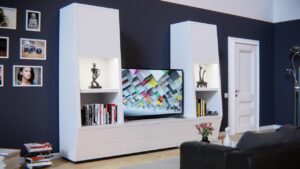
A smart TV can look attractive because it usually offers a large display, built-in streaming apps, strong speakers, and a remote control. For a home office that also doubles as a living room or media space, this can be convenient.
A smart monitor, on the other hand, is usually designed with computer work in mind. It often handles text, desk distance, laptop connections, and productivity setups better than a TV. For emails, spreadsheets, video calls, coding, research, and daily office tasks, those details matter more than many people expect.
The main difference is simple: a smart TV is primarily built for entertainment at a longer viewing distance, while a smart monitor is primarily built for computer use at a desk. Both can work, but they are not equally comfortable in every home office.
This guide explains the practical differences, the most common mistakes, and a safe way to decide before spending money on the wrong screen.
Important note: before buying a screen for long work sessions, check the official specifications from the manufacturer, confirm the warranty conditions, and make sure the display supports the ports, resolution, refresh rate, and mounting options you actually need.
Smart TV vs. smart monitor: the main difference for work
A smart TV is made mainly for watching content. It usually includes apps such as streaming platforms, a TV-style interface, a remote control, speakers, and image processing designed for movies, sports, and casual viewing. That can be useful if your office screen will also be used as an entertainment screen after work.
A smart monitor is closer to a traditional computer monitor, but with built-in smart features. Depending on the model, it may include streaming apps, wireless display options, speakers, USB ports, and sometimes USB-C charging. Its main advantage is that it is usually easier to use on a desk with a laptop or desktop computer.
In practice, the best choice is not automatically the bigger screen. A 43-inch TV may feel impressive at first, but it can become uncomfortable if you sit too close. A 27-inch or 32-inch monitor may look less dramatic, but it can be much better for reading, typing, and switching between apps for several hours.
| Criterion | Smart TV | Smart Monitor |
|---|---|---|
| Main purpose | Entertainment, streaming, casual display use | Desk work, computer use, productivity, hybrid use |
| Best viewing distance | Usually better from farther away | Usually better from normal desk distance |
| Text clarity | Can be good, but depends heavily on PC mode and settings | Usually more consistent for reading and office work |
| Ports | Often strong for HDMI devices | Often better for laptops, USB hubs, and USB-C setups |
| Ergonomics | Often limited stand adjustment | Often easier to adjust, mount, or position on a desk |
| Best use case | Large shared screen, presentations, entertainment | Daily home office work, multitasking, laptop docking |
When a smart TV makes sense in a home office
A smart TV can be a good choice if your home office is not only a work area. For example, it may work well in a room where you give presentations, watch training videos, join occasional meetings from a sofa, or use the same screen for movies and streaming after work.
It can also make sense if you need a large screen for visual tasks that do not require constant close-up reading. A designer reviewing a layout with a client, a teacher showing slides, or a small team looking at a dashboard may benefit from the size of a TV.
The main caution is comfort. Many TVs are too large for a normal desk. If your eyes need to move constantly from one corner to another, the screen can become tiring. A common mistake is buying a big TV because it feels like better value, then discovering that normal text feels harder to read during long sessions.
- Choose a smart TV if you sit far enough from the screen.
- Confirm that the TV has a clear PC or game mode for computer input.
- Check whether the HDMI ports support the resolution and refresh rate you need.
- Make sure the stand or wall mount fits your desk layout.
- Avoid buying only because the screen is larger for the price.
When a smart monitor is the better home office choice
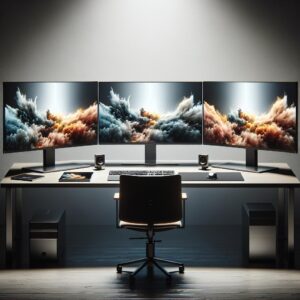
A smart monitor is usually the safer option for a dedicated home office. It is more likely to feel natural when placed on a desk, especially if your work involves documents, browser tabs, spreadsheets, writing, coding, customer support tools, or video calls.
Many smart monitors also reduce cable clutter. Some models include USB-C with power delivery, which can let a compatible laptop send video and receive power through one cable. This is especially useful if you move between a desk setup and a portable laptop setup during the day.
Another practical advantage is adjustability. Monitors are more likely to support height adjustment, tilt, swivel, pivot, or VESA mounting. That matters because screen position affects neck comfort. A screen that looks impressive but sits too low, too high, or too far to one side can become uncomfortable quickly.
| Work style | Better option | Why it usually works better |
|---|---|---|
| Writing, email, spreadsheets, research | Smart monitor | Better desk comfort and text-focused use |
| Streaming, movies, casual viewing after work | Smart TV | Larger screen, stronger media features, remote control |
| Laptop docking with fewer cables | Smart monitor | USB-C and monitor-style ports may be more practical |
| Shared presentations in a room | Smart TV | Bigger image for people sitting farther away |
| Mixed work and entertainment on a desk | Smart monitor | Balanced option for daily work and occasional streaming |
Screen size, distance, and text clarity
Screen size should match the distance between your eyes and the display. A large TV can be comfortable across a room, but too big on a desk. A smaller monitor can feel more comfortable because the entire screen stays inside your normal field of view.
Text clarity depends on more than resolution. Pixel density, scaling, panel quality, sharpness settings, and how the device handles computer input all affect readability. A 4K TV can still look poor for office work if it applies heavy image processing, overscan, or incorrect sharpness settings.
For computer work, look for settings such as PC mode, game mode, full chroma support, correct aspect ratio, and the ability to disable unnecessary image enhancements. On a monitor, these issues are usually simpler because the display is already built for computer signals.
Ports, USB-C, HDMI, and daily convenience
Ports can decide whether a screen feels practical every day. A smart TV usually offers multiple HDMI ports, which is useful for consoles, streaming boxes, soundbars, and media devices. Some TVs also support HDMI ARC or eARC for audio systems.
A smart monitor may offer fewer HDMI ports, but it can be more useful for laptops if it includes USB-C, DisplayPort, USB hub functions, or power delivery. With the right model, one cable can connect the laptop to the display and also charge it. That creates a cleaner desk and reduces the need to plug in several accessories every morning.
Before buying, do not assume that every USB-C port does the same thing. Some USB-C ports only transfer data, some support video, and some also provide charging. Always read the manufacturer’s specification sheet carefully, especially if you want a one-cable setup.
-
List the devices you will connect.
Write down your laptop, desktop, console, webcam, keyboard, mouse, speakers, and any dock you use. This prevents buying a screen that looks good but lacks the right ports.
-
Check the video input standard.
Confirm whether your device uses HDMI, DisplayPort, USB-C, or another connection. Do not rely only on the shape of the port, because the supported features can vary.
-
Confirm charging needs.
If you want USB-C charging, check the wattage supported by the screen and compare it with your laptop’s requirements. A weak charging output may not keep up during heavy work.
-
Verify refresh rate and resolution.
Make sure the screen can run your desired resolution at a comfortable refresh rate through the port you plan to use. Some displays support higher performance only through specific inputs.
-
Plan cable length and desk position.
A clean setup depends on cable routing. Measure the desk, wall, and distance to the outlet before buying long or expensive cables that may not be necessary.
Ergonomics and comfort during long work sessions
For a home office, ergonomics often matter more than smart features. A display should allow you to sit naturally, keep your neck relaxed, and view the screen without leaning forward. If the screen is too high, too low, or too close, discomfort can appear even if the image quality is excellent.
Smart monitors usually have an advantage here because many are designed for desks. Even when the included stand is basic, monitor arms and VESA mounts are common. With a TV, the stand may be wide, low, and difficult to adjust. Wall mounting can solve this, but it requires more planning.
Another detail is brightness. TVs can be very bright because they are made for living rooms, but a very bright screen in a small office can cause eye strain. A monitor usually gives more predictable control for office lighting. In many cases, a comfortable brightness setting is more useful than maximum brightness.
- Place the screen so you do not need to raise your chin to read.
- Keep the screen far enough away that your eyes can scan it naturally.
- Use scaling settings if text feels too small on a high-resolution screen.
- Avoid very high brightness in a dark room.
- Check VESA mount support if the included stand is not adjustable.
- Test text readability before committing to the setup permanently.
Performance for video calls, gaming, and multitasking
For video calls, a smart monitor often feels easier to integrate with a laptop, webcam, microphone, and desk setup. Some models include built-in cameras or support accessories more naturally. A TV can still work, but the camera position may become awkward if the screen is too large or mounted far away.
For gaming after work, the answer depends on the model. Some smart TVs offer excellent gaming features, including low-latency modes and high refresh rates. Some monitors also offer strong gaming performance, often with faster response times and desk-friendly sizes. The important point is to check the real specifications, not only the marketing name.
For multitasking, a smart monitor is usually more practical. Office work often benefits from two windows side by side, consistent text clarity, and quick switching between inputs. A large TV can show many windows, but it may feel less precise if you sit too close or if the image processing makes text less sharp.
Common mistakes when choosing between them
One common mistake is choosing the largest screen available within the budget. Bigger can be useful for movies and presentations, but it does not automatically improve productivity. If the screen is too large for your desk, your eyes and neck may work harder all day.
Another mistake is ignoring input lag and image processing. Some TVs apply motion smoothing, noise reduction, or sharpening that looks fine for video but unpleasant for computer text. Before using a TV as a monitor, enable PC mode or game mode and disable unnecessary processing.
A third mistake is assuming that smart features replace proper computer features. Built-in apps are convenient, but they do not solve weak ergonomics, missing ports, poor text rendering, or limited stand adjustment. For work, the basics still matter first.
| Mistake | Possible consequence | Better approach |
|---|---|---|
| Buying only by screen size | Discomfort at normal desk distance | Match size to viewing distance and task type |
| Ignoring USB-C details | No video output or weak charging | Check video, data, and power delivery separately |
| Using TV picture modes for office work | Blurry text or delayed mouse movement | Enable PC mode or game mode when available |
| Forgetting stand adjustment | Poor posture and neck strain | Choose adjustable stand or VESA mount support |
| Overpaying for smart apps | Money spent on features rarely used | Prioritize display quality and connectivity first |
When to switch from a smart TV to a smart monitor
If you already use a smart TV as your office screen, you do not need to replace it immediately if it feels comfortable. However, there are clear signs that a smart monitor may be a better long-term solution.
Consider switching if text looks slightly blurry even after adjusting settings, if your neck feels tired after long sessions, if your desk feels crowded, or if you constantly fight with cables. These are not small details when you work from home every day.
A smart monitor also becomes more attractive when your work becomes more computer-heavy. If your screen time shifts from occasional browsing to full workdays with documents, calls, dashboards, and multitasking, a monitor-focused setup is usually easier to live with.
Final recommendation for most home offices
For most people building a serious home office, a smart monitor is the better choice. It is usually more comfortable at desk distance, easier to connect to a laptop, better for text, and more practical for daily productivity.
A smart TV is better when the screen will be used mainly from farther away, shared with other people, or used heavily for entertainment. It can also be a good solution for presentations, training videos, or a room where work and media use are equally important.
The safest recommendation is this: choose a smart monitor if work is the priority, and choose a smart TV if large-screen entertainment or room-sharing is the priority. If you want both, consider a smart monitor for the desk and use a separate TV for the room.
Conclusion
The smart TV vs. smart monitor decision comes down to comfort, distance, ports, and daily work habits. A smart TV can be useful in a flexible room, but a smart monitor is usually better for a focused home office where reading, typing, video calls, and multitasking happen every day.
If you are unsure, start by measuring your desk, checking your laptop ports, and deciding how many hours per day you will use the screen for actual work. That simple step prevents the most common buying mistake: choosing a screen that looks impressive but feels uncomfortable after a few days.
Before buying, confirm the official specifications, warranty, mounting support, and return policy. If your setup involves complex cabling, wall mounting, electrical work, or professional audio/video equipment, it is safer to ask the manufacturer, retailer, or a qualified installer for guidance.
FAQ
1. Is a smart TV good enough for a home office?
A smart TV can be good enough for a home office if you sit far enough away and use it mainly for presentations, videos, dashboards, or light computer work. It may not be ideal for long writing sessions, spreadsheets, coding, or reading small text all day. The experience depends on the TV’s size, resolution, PC mode, input lag, and image processing. If text looks blurry or your neck feels tired, a monitor is usually a better choice.
2. Is a smart monitor better than a smart TV for productivity?
For most productivity tasks, yes. A smart monitor is usually better because it is designed for desk distance, computer input, text clarity, and long work sessions. It may also offer more practical laptop features, such as USB-C, DisplayPort, USB hub support, and better stand adjustment. A smart TV can still work, but it often needs more careful setup to avoid blurry text, oversized screen distance problems, or uncomfortable positioning.
3. Can I use a 4K smart TV as a computer monitor?
Yes, you can use a 4K smart TV as a computer monitor, but the result depends on the TV and settings. For the best experience, use the correct HDMI port, enable PC mode or game mode, set the correct resolution, and turn off unnecessary image processing. You should also check whether the TV handles text clearly. A 4K label alone does not guarantee that small fonts will look comfortable from desk distance.
4. What screen size is best for a home office?
There is no single perfect size, but many desk setups work well with monitors in the 24-inch to 32-inch range. Larger screens can be useful, but they need more viewing distance. A TV above 40 inches may feel too large on a normal desk unless you sit far back. The best size is the one that lets you read comfortably without moving your head constantly or leaning forward to see details.
5. Does a smart monitor need a computer?
A smart monitor can run some built-in apps without a computer, depending on the model. However, for real office work, you will usually still connect a laptop or desktop. The smart features are useful for streaming, wireless display, quick browsing, or casual media use, but they do not replace a full computer for most professional tasks. Think of the smart features as extra convenience, not the main reason to buy one.
6. Is USB-C important on a smart monitor?
USB-C can be very useful, especially for laptop users. A good USB-C monitor may allow video, data, and charging through one cable, creating a cleaner desk setup. However, not every USB-C port supports the same features. Some only handle data, while others support video and power delivery. Always check the official specifications and confirm the charging wattage before assuming the monitor can replace your laptop charger.
7. Why does text sometimes look blurry on a TV?
Text can look blurry on a TV because TVs often apply processing designed for video, not computer text. Sharpness filters, motion smoothing, scaling, overscan, or incorrect input settings can reduce clarity. Some TVs also handle color information differently when used as a computer display. Enabling PC mode, using the correct HDMI input, setting the native resolution, and disabling extra image enhancements can help, but a monitor is usually simpler for text-heavy work.
8. Is a smart TV better for video calls?
A smart TV can show video calls on a large screen, but it is not always better. The camera may sit too far away, too low, or too high, which can make calls feel less natural. Audio can also become more complicated if you use external speakers or a soundbar. A smart monitor on a desk usually gives a better camera position and easier access to a microphone, webcam, keyboard, and mouse.
9. Which is better for gaming after work?
Both can be good for gaming, but the right choice depends on the model. Some smart TVs offer excellent gaming features, large screens, and strong HDR performance. Some monitors offer faster response times, higher refresh rates, and better desk comfort. If gaming is important, check refresh rate, input lag, HDMI version, variable refresh rate support, and whether the device can use those features through the port you plan to connect.
10. Should I buy a smart monitor or a normal monitor?
A normal monitor may be enough if you only need a display for your computer and do not care about built-in apps. A smart monitor makes more sense if you want one screen for work and occasional streaming without turning on a laptop. The decision depends on whether the smart features are actually useful to you. Do not pay extra for apps if your main need is simply better image quality, ergonomics, and ports.
11. Are smart TVs cheaper than smart monitors?
Smart TVs can look cheaper when comparing screen size only, especially at larger sizes. However, price should not be judged by inches alone. For home office work, you also need to consider text clarity, desk comfort, ports, stand adjustment, power use, and return policy. A cheaper large TV may become a poor value if it causes discomfort or does not work well with your computer. The better purchase is the one that fits your actual use.
12. What should I check before buying either option?
Before buying, check screen size, resolution, refresh rate, panel type, brightness, HDMI ports, USB-C features, power delivery, stand adjustment, VESA mount support, warranty, and return policy. Also confirm that your laptop or desktop can output the resolution and refresh rate you want. If possible, test text clarity in person or buy from a retailer with a clear return process. This reduces the risk of keeping a screen that is uncomfortable for daily work.
Editorial note: this article is for educational purposes and is meant to help readers compare home office display options. Product features vary by model, region, and manufacturer, so always confirm the official specification sheet before purchasing.
Official References
- HDMI Licensing Administrator — Ultra High Speed HDMI Cable certification and specifications
- VESA DisplayHDR — Certified DisplayHDR performance information
- ENERGY STAR — Certified Displays product finder
- ENERGY STAR — Certified Televisions product finder
- USB-IF — USB Power Delivery information

Dr. Silas Olive is a display technology and digital productivity enthusiast with over a decade of hands-on experience testing monitors, calibrating panels, and building workstations for creators and office professionals. He founded Olive HD to translate complex technical specifications — such as refresh rates, color gamuts, and HDR standards — into straightforward guidance that anyone can use to choose, configure, and optimize their own screen setup. His focus is on helping readers avoid expensive purchasing mistakes and squeeze the best visual performance out of the equipment they already own.