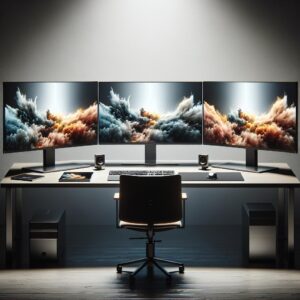
Ergonomic tips for high-definition displays matter because sharper screens can make work feel easier, but they can also hide small setup problems that slowly affect comfort. A 4K or high-resolution monitor may show more detail, yet poor height, wrong distance, glare, tiny text, and long viewing sessions can still lead to eye fatigue, neck tension, and awkward posture.
A high-definition display is not automatically ergonomic. The real benefit appears when the screen is placed at a comfortable viewing distance, adjusted to the right height, matched with readable text size, and positioned in a way that lets your head, neck, shoulders, and back stay relaxed.
This guide explains how to set up HD monitors, laptop screens, ultrawide displays, and multi-monitor workstations in a practical way. The goal is not to create a perfect office, but to help you make safer and more comfortable choices with the equipment you already have.
In many cases, discomfort does not come from the display itself. It comes from small daily habits, such as leaning forward to read small text, placing the screen too high, working with glare on the panel, or using two monitors while constantly twisting the neck.
By the end, you will know how to adjust display height, distance, brightness, scaling, viewing angle, lighting, desk layout, and daily habits so your screen supports your work instead of forcing your body to adapt to a poor setup.
Important note: this guide is educational and does not replace medical advice, a workplace ergonomics assessment, or professional support. If you have persistent pain, vision changes, headaches, numbness, or discomfort that does not improve after adjustments, consult a qualified professional.
Why High-Definition Displays Need Ergonomic Adjustment
High-definition displays can improve clarity, but they also encourage people to fit more content on the screen. When windows, menus, icons, and text become too small, users often lean forward without noticing. This can reduce back support, increase neck strain, and make the eyes work harder than necessary.
A common mistake is assuming that maximum resolution should always be used with the smallest interface size. In practice, the best setting is the one that lets you read comfortably while keeping your head upright, your shoulders relaxed, and your back supported by the chair.
HD displays also tend to be larger than older monitors. A bigger panel can be useful for productivity, but it requires more attention to viewing distance, screen height, and side-to-side positioning. If the monitor is too close, your eyes and neck may need to move too much. If it is too far, you may strain to read details.
| Display setup issue | Possible effect | What to adjust first |
|---|---|---|
| Text looks too small | Leaning forward and eye fatigue | Increase display scaling or text size |
| Monitor is too high | Neck extension and shoulder tension | Lower the screen or adjust chair height safely |
| Screen is too close | Eye strain and frequent head movement | Move the display farther back if readable |
| Glare appears on the panel | Squinting and awkward posture | Change screen angle or lighting position |
| Second monitor is off to the side | Repeated neck rotation | Center the primary screen and angle the secondary screen |
Ergonomic Tips for High-Definition Displays: Height, Distance, and Angle
The most important ergonomic tips for high-definition displays begin with position. A practical starting point is to place the monitor directly in front of you, at a distance where you can read clearly without leaning forward. For many desktop setups, this usually means roughly an arm’s length away, then adjusting based on screen size, resolution, and personal comfort.
The top of the screen should generally be at or slightly below eye level. This helps you look slightly downward at the main viewing area instead of tilting your head back. If the display is very large, avoid raising the entire screen too high just because the panel has more vertical space.
The monitor should face you directly. If the screen is turned too far to one side, your neck and torso may rotate for long periods. For a single main display, keep it centered with your keyboard and chair. For a secondary display, place it close to the main screen and angle it inward.
Screen tilt also matters. A slight tilt can help the display face your line of sight, but too much tilt may distort visibility or reflect overhead light. If glare appears after tilting the screen, adjust the lighting or screen position instead of forcing your body into an uncomfortable posture.
How to Make Text, Scaling, and Resolution Comfortable
High resolution is useful only when the content remains easy to read. If a 4K display makes text and icons too small, increase operating system scaling rather than moving your face closer to the screen. This is one of the simplest fixes for HD monitor discomfort.
For office work, reading, coding, writing, spreadsheets, design tools, and browser-based tasks, comfort is usually more important than fitting the maximum amount of content on the panel. A slightly larger interface can reduce eye effort and help you keep a stable seated posture.
Brightness should match the room. A screen that is much brighter than the surroundings can feel harsh, while a screen that is too dim may make you strain to read. Adjust brightness during the day if the room lighting changes significantly.
| Setting | Best use | Careful with |
|---|---|---|
| Display scaling | Making text and interface elements easier to read | Using very small scaling just to fit more windows |
| Brightness | Matching screen light to room light | Leaving brightness at maximum in a dim room |
| Contrast | Improving text separation from the background | Extreme settings that make details look harsh |
| Refresh rate | Creating smoother motion on supported displays | Assuming it solves posture or lighting problems |
| Night or warm mode | Reducing harsh screen appearance in low light | Using it as a replacement for proper lighting |
Step-by-Step Setup for a More Comfortable HD Display
A good setup is easier when you adjust one thing at a time. Before buying accessories, test your current monitor, chair, desk, and lighting. Many problems can be improved with placement, scaling, and habits.
-
Set your chair first.
Sit with your back supported, shoulders relaxed, and feet supported on the floor or a footrest. This matters because screen height depends on your seated eye level. Avoid adjusting the monitor while sitting in a slouched or temporary posture.
-
Center the main display.
Place the monitor directly in front of your body, aligned with your keyboard and chair. This helps reduce neck rotation. If you use one screen more than the other, that screen should be treated as the primary display.
-
Adjust the distance.
Move the display far enough away that you can see the whole screen comfortably, but not so far that you lean forward to read. If text becomes hard to read, increase scaling before pulling the monitor too close.
-
Lower or raise the screen carefully.
Keep the top of the display at or slightly below eye level as a practical starting point. If you wear bifocals or progressive lenses, you may need a lower screen position to avoid tilting your head backward.
-
Fix glare before increasing brightness.
Check whether windows, lamps, or overhead lights reflect on the screen. Change the monitor angle, close blinds, or reposition the light source. Raising brightness may hide glare temporarily, but it does not solve the posture problem caused by reflections.
-
Set comfortable scaling and text size.
Open a document, browser page, email, or work tool you use often. Increase text size until you can read without leaning. Avoid judging comfort only from the desktop wallpaper or a single app.
-
Test the setup during real work.
Use the display for at least one normal work session and notice whether you lean, squint, raise your shoulders, or twist your neck. Small discomfort signs are useful feedback before they become daily habits.
Checklists Before You Work for Long Periods
Checklists are useful because ergonomic problems often come from small details. A screen can look fine at first glance but still be too bright, too high, too close, or difficult to read after one hour of focused work.
- The main display is centered in front of your chair and keyboard.
- The top of the screen is at or slightly below eye level.
- You can read normal text without leaning forward.
- Your back stays supported while viewing the screen.
- Your shoulders remain relaxed instead of raised.
- The screen does not reflect windows, lamps, or ceiling lights.
- Brightness feels balanced with the room lighting.
- Display scaling makes menus, documents, and browser text comfortable.
Before spending money on a monitor arm, new chair, or larger display, check whether the problem is actually caused by basic positioning. In many cases, moving the monitor, changing scaling, or improving lighting is enough to make the setup noticeably better.
- Test software scaling before buying a larger screen.
- Use books or a stable riser only as a temporary height test.
- Confirm that your desk has enough depth for the monitor size.
- Check whether your chair height changes your viewing angle.
- Make sure cables allow safe adjustment without pulling.
- Avoid unstable stacks or objects that can slide under the monitor.
- Try a different light position before purchasing an anti-glare filter.
Special Tips for Laptops, Ultrawide Displays, and Dual Monitors
Laptops are convenient, but their built-in screens usually sit too low for long desktop sessions. If you use a laptop for extended work, place it on a stable stand and use an external keyboard and mouse. This lets the screen rise without forcing your wrists and shoulders into an awkward position.
Ultrawide displays need enough distance. Because the panel is wider, sitting too close may require constant eye and head movement. Keep the most important window near the center and avoid placing frequently used tools at the far edges if that makes you rotate your neck repeatedly.
For dual monitors, decide which screen is primary. If you use both equally, place them side by side with the inner edges close to the center. If one screen is used most of the time, place that one directly in front of you and keep the secondary display slightly angled beside it.
A practical example is a student or worker using one monitor for writing and another for research. The writing screen should usually stay centered, because that is where most focused work happens. The reference screen can sit to the side, but it should not require a full neck turn every few seconds.
Common Mistakes That Make HD Displays Less Comfortable
One common mistake is using tiny text because the screen is sharp enough to show it. Sharp text is not the same as comfortable text. If you need to lean in, narrow your eyes, or move your head closer, the setup is not working well.
Another mistake is placing the monitor on top of a desktop computer case or a tall stand without checking eye level. This often makes the display too high, causing the user to tilt the head back. Over time, that position can create neck and shoulder fatigue.
Glare is also easy to ignore. People often change posture to avoid reflections without realizing it. They may sit slightly sideways, lower their head, raise their chin, or move closer to the screen. Fixing glare directly is better than adapting your posture around it.
Finally, many users buy a bigger monitor before checking desk depth. A large display on a shallow desk can sit too close, making it difficult to view comfortably. Before upgrading, measure your desk and think about how far the screen can sit from your eyes.
When to Seek Professional Help or Official Guidance
You should consider professional support if discomfort continues after basic adjustments. Persistent neck pain, back pain, headaches, eye strain, numbness, tingling, or vision changes should not be ignored. An ergonomic setup can help reduce strain, but it is not a medical diagnosis or treatment plan.
In a workplace, ask whether an ergonomics assessment is available. A trained evaluator can check chair fit, monitor height, desk depth, keyboard position, lighting, and task habits together. This is helpful because the display is only one part of the workstation.
If you wear glasses, bifocals, progressive lenses, or contact lenses, an eye care professional can help determine whether your current prescription works well for screen distance. Some people need lens adjustments or specific guidance for computer work.
For offices, schools, or shared workstations, official occupational safety resources can also help establish safer guidelines. These sources are especially useful when many people use the same equipment or when employees spend long hours at computer workstations.
Conclusion
Ergonomic tips for high-definition displays are most effective when you focus on comfort, readability, and neutral posture instead of only screen size or resolution. A sharp display should help you work clearly without leaning forward, twisting your neck, raising your shoulders, or fighting glare.
The best starting point is simple: center the main screen, adjust distance, keep the top of the display around eye level or slightly below, increase text scaling when needed, and match brightness to the room. These small changes often solve the most common problems before extra equipment is necessary.
If discomfort continues, do not keep forcing your body to adapt to the screen. Review the full workstation, check lighting, consider an ergonomic assessment, and seek medical or eye care guidance when symptoms persist. A comfortable HD display setup should support daily work safely and consistently.
FAQ
1. How far should a high-definition monitor be from my eyes?
A practical starting point is to place the monitor about an arm’s length away, then adjust based on screen size, text readability, and comfort. Many official ergonomic recommendations describe a general range of around 20 to 40 inches for desktop monitors, but the best distance depends on your display, vision, desk depth, and task. If you need to lean forward to read, first increase text size or scaling before moving the screen closer. If the screen feels overwhelming or requires too much head movement, move it farther back if your desk allows it.
2. Should the top of my HD display be above or below eye level?
For many users, the top of the display should be at or slightly below eye level. This allows a relaxed, slightly downward viewing angle and helps reduce the need to tilt the head backward. Very large displays may need extra adjustment because the top edge can become too high even when the center looks comfortable. If you wear bifocals or progressive lenses, you may need the monitor lower than usual to avoid lifting your chin. The safest test is whether your head stays neutral while reading normal content.
3. Is a 4K monitor better for ergonomics?
A 4K monitor can be more comfortable if it provides sharper text and better visual clarity, but it is not automatically ergonomic. If the interface is too small, a 4K screen can make you lean forward or strain your eyes. The key is to use proper scaling, comfortable text size, balanced brightness, and correct placement. For productivity, 4K can help when you need more workspace, but only if the display is large enough and positioned far enough away. Comfort depends more on setup than resolution alone.
4. What is the best brightness level for an HD display?
There is no single brightness number that works for every room. The screen should feel balanced with the surrounding light. If the display looks like a bright lamp in a dark room, it may be too intense. If it looks dull and hard to read in a bright room, it may be too dim. Adjust brightness when lighting changes during the day. Also check glare before raising brightness, because reflections can make the screen harder to see even when the brightness setting is high.
5. How do I reduce glare on a high-definition display?
Start by identifying the source of the reflection. Common causes include windows behind you, overhead lights, glossy walls, and lamps pointed toward the screen. Place the monitor perpendicular to windows when possible, adjust blinds, move lamps, or slightly change the screen angle. Avoid solving glare by twisting your body or tilting your head because that can create posture problems. If the room cannot be changed, a matte screen protector or anti-glare filter may help, but lighting and placement should be checked first.
6. Are ultrawide monitors bad for posture?
Ultrawide monitors are not bad by themselves, but they need careful placement. If you sit too close or place important windows at the far edges, you may move your head and neck too often. Keep your main work area near the center of the screen and place secondary windows toward the sides. Make sure the display is far enough away that you can view the central area comfortably. For very wide screens, a curved panel may feel more natural for some users, but setup still matters.
7. What is the best setup for two monitors?
The best dual-monitor setup depends on how you work. If one monitor is used most, place it directly in front of you and put the second monitor beside it at a slight inward angle. If both are used equally, place them close together with the center gap aligned near your body. Avoid placing one monitor far to the side because repeated neck rotation can become tiring. Also match brightness, scaling, and height as closely as possible so your eyes and posture do not constantly adjust between screens.
8. Should I use a monitor arm for an HD display?
A monitor arm can be useful if your current stand does not allow proper height, distance, tilt, or rotation. It is especially helpful for large displays, dual monitors, and desks with limited surface space. However, it is not always necessary. Before buying one, test whether your problem can be solved with chair height, screen scaling, desk position, or a stable monitor riser. If you choose a monitor arm, confirm that it supports your display’s weight, size, and mounting standard.
9. Why do my eyes feel tired even with a sharp screen?
Sharpness is only one part of visual comfort. Eye fatigue can also come from small text, excessive brightness, poor contrast, glare, dry eyes, long viewing sessions, or not blinking enough while focusing. High-definition displays may encourage long periods of close attention because the image looks clean and detailed. Take short visual breaks, look at farther objects regularly, blink naturally, and adjust scaling so text is easy to read. If eye strain continues, consider checking your vision with an eye care professional.
10. Is dark mode better for ergonomic comfort?
Dark mode can feel more comfortable in low-light environments, but it is not automatically better for everyone. Some people read better with dark text on a light background, especially in bright rooms. Others prefer dark mode at night because it reduces the feeling of screen brightness. The best choice depends on room lighting, contrast, personal vision, and the type of work. Avoid very low contrast themes because they may make text harder to read. Comfort and readability should guide the decision.
11. How should I set up a laptop screen for long work sessions?
For long sessions, avoid using the laptop flat on the desk as your only workstation. The screen is usually too low, which can pull your head and neck downward. A better setup is to place the laptop on a stable stand and use an external keyboard and mouse. This lets the screen sit closer to eye level while your arms remain comfortable. If you cannot use a stand, take more breaks and change posture often, but do not treat a low laptop screen as ideal for all-day work.
12. When should I stop adjusting the display and ask for help?
You should ask for help if pain, headaches, eye strain, numbness, tingling, or discomfort continues after basic adjustments. In a workplace, request an ergonomic assessment if available. If symptoms involve vision, glasses, contact lenses, or trouble focusing, consult an eye care professional. If pain is persistent or affects daily activities, speak with a qualified health professional. Display setup can reduce avoidable strain, but it should not be used as a substitute for proper evaluation when symptoms continue.
Editorial note: this article is for educational purposes and is intended to help readers make safer display setup decisions. It does not replace medical care, professional ergonomics evaluation, or workplace safety guidance for situations involving persistent discomfort or specialized equipment.
Official References
- Occupational Safety and Health Administration — Computer Workstations: Monitors
- Canadian Centre for Occupational Health and Safety — Office Ergonomics: Positioning the Monitor
- Mayo Clinic — Office Ergonomics: Your How-To Guide
Dr. Silas Olive is a display technology and digital productivity enthusiast with over a decade of hands-on experience testing monitors, calibrating panels, and building workstations for creators and office professionals. He founded Olive HD to translate complex technical specifications — such as refresh rates, color gamuts, and HDR standards — into straightforward guidance that anyone can use to choose, configure, and optimize their own screen setup. His focus is on helping readers avoid expensive purchasing mistakes and squeeze the best visual performance out of the equipment they already own.