A productive triple-monitor display system can make work feel faster, cleaner, and easier to manage when it is set up with the right hardware, layout, and daily workflow. The goal is not simply to connect three screens, but to create a workspace where every monitor has a clear purpose.
Many people add extra monitors expecting instant productivity, but the result can become messy if the displays are not arranged correctly. Windows may open in the wrong place, cables can become confusing, text may look uneven, and the desk can feel crowded instead of efficient.
A good triple-monitor setup starts with checking your computer’s graphics capability, choosing the right monitor arrangement, using the correct cables, and adjusting display settings carefully. Small details such as monitor height, brightness, scaling, and task placement can make a big difference during long work sessions.
This guide explains how to set up a triple-monitor system in a practical way, from hardware checks to workspace organization. It is written for beginners, remote workers, students, gamers, creators, analysts, developers, and anyone who wants more screen space without creating a distracting setup.
Important note: before buying monitors, adapters, docks, or cables, confirm your computer’s official specifications. Not every laptop, graphics card, USB-C port, or docking station supports three external displays at the same resolution and refresh rate.
What You Need Before Setting Up Three Monitors
Before connecting anything, check whether your computer can support a triple-monitor display system. This depends mainly on the graphics card, the number of video outputs, the operating system, and the type of ports available on the device.
Desktop computers are usually easier to configure because many dedicated graphics cards include multiple HDMI, DisplayPort, or USB-C video outputs. Laptops may need a docking station, USB-C hub, Thunderbolt dock, or DisplayLink adapter, depending on the model.
A common mistake is assuming that three physical ports always mean three working external monitors. Some computers have ports that share the same internal video output, while others limit the number of active displays even when adapters are used.
| Component | What to Check | Why It Matters |
|---|---|---|
| Graphics card or integrated graphics | Maximum number of supported displays | Determines whether three monitors can run at the same time. |
| Video ports | HDMI, DisplayPort, USB-C, Thunderbolt, or VGA | Defines which cables or adapters you may need. |
| Monitor resolution | 1080p, 1440p, 4K, or ultrawide format | Higher resolutions require more graphics bandwidth. |
| Docking station | Number of supported external displays | Some docks support only one or two displays, even with several ports. |
| Operating system | Display settings and scaling options | Helps align screens, text size, and window behavior correctly. |
Choosing the Best Monitor Layout for Productivity
The best monitor layout depends on the type of work you do. A triple-monitor display system should reduce window switching, not encourage unnecessary multitasking. Each screen should have a clear role.
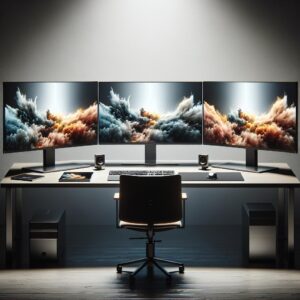
For most users, the center monitor should be the main workspace. This is where you place the task that needs the most focus, such as writing, coding, editing, studying, designing, or managing spreadsheets.
The left and right monitors work best as support screens. One can hold communication tools, notes, references, dashboards, calendars, or research pages. The other can be used for previews, file folders, analytics, chats, or secondary applications.
| Layout | Best For | Important Care |
|---|---|---|
| Three monitors side by side | General office work, coding, trading, research, and multitasking | Keep the main monitor centered to avoid neck strain. |
| One vertical monitor and two horizontal monitors | Reading documents, coding, writing, email, and long web pages | Use vertical mode only if the monitor stand supports rotation safely. |
| Stacked monitors | Small desks, monitoring dashboards, streaming, or compact setups | Avoid placing the top monitor too high for long periods. |
| Curved center monitor with side monitors | Creative work, gaming, video editing, and immersive workflows | Check desk depth and viewing distance before buying. |
Checklist Before Buying Monitors, Cables, or Adapters
Buying equipment before checking compatibility is one of the most common causes of setup problems. A monitor may work perfectly by itself but fail when connected as part of a three-screen arrangement.
In practice, the safest approach is to confirm the computer’s display limits first, then choose monitors and cables that match those limits. This avoids spending money on adapters that cannot solve a hardware limitation.
- Confirm how many external displays your computer officially supports.
- Check whether your ports are HDMI, DisplayPort, USB-C, Thunderbolt, Mini DisplayPort, or VGA.
- Verify the maximum resolution and refresh rate supported by each port.
- Choose monitors with compatible inputs to reduce the need for adapters.
- Use certified cables when working with 4K, high refresh rates, or long cable runs.
- Check whether your desk can physically hold three monitors comfortably.
- Consider a monitor arm if the original stands take too much desk space.
- Make sure your power outlets and cable management are safe and organized.
Step-by-Step Guide to Setting Up a Triple-Monitor Display System
Once you have confirmed compatibility, the setup process becomes much easier. The main steps are connecting the displays, arranging them in the operating system, adjusting resolution and scaling, and testing the workflow.
-
Place the monitors on the desk first.
Position the center monitor directly in front of you. Place the side monitors at a slight angle so you can see them without turning your neck too much. Avoid final cable routing until you are sure the layout feels comfortable.
-
Connect each monitor to the correct video output.
Use direct connections whenever possible, such as DisplayPort to DisplayPort or HDMI to HDMI. If you need adapters, choose the correct type and confirm whether they support the resolution and refresh rate you want.
-
Turn on the computer and monitors.
Power on the monitors before adjusting display settings. If one screen is not detected, check the cable, input source, dock, adapter, and graphics driver before assuming the monitor is defective.
-
Open your operating system display settings.
On Windows, use Display Settings. On macOS, use Displays in System Settings. On Linux, use the display configuration tool available in your desktop environment. The goal is to make the digital layout match the physical layout.
-
Arrange the monitors in the correct order.
Drag the display icons so the left, center, and right screens match your desk. This prevents the mouse from moving in the wrong direction when crossing between monitors.
-
Select the main display.
Set the center monitor as the primary display in most cases. This keeps the taskbar, dock, main apps, and system dialogs in the most comfortable viewing position.
-
Adjust resolution and scaling.
Use each monitor’s native resolution when possible. If text looks too small or too large, adjust scaling instead of lowering the resolution, because lowering resolution can make the image look blurry.
-
Match brightness and color as closely as possible.
Different monitors can look slightly different. Adjust brightness, contrast, and color temperature so the screens feel balanced, especially if you work with documents, design, images, or video.
-
Test your daily workflow.
Open the apps you use most and place them where they make sense. If you constantly turn your head or lose windows, change the layout before making the setup permanent.
How to Organize Apps Across Three Screens
A triple-monitor display system becomes productive when each screen has a job. Without structure, three monitors can become three sources of distraction. The best setup depends on your daily routine.
For writing or studying, the center screen can hold the document, the left screen can show research, and the right screen can hold notes or communication. For coding, the center monitor can show the editor, one side can show documentation, and the other can show terminal windows or previews.
For business tasks, spreadsheets, dashboards, emails, calendars, and web tools can be separated by function. This reduces constant window switching and helps you stay aware of important information without covering your main task.
| Type of Work | Center Monitor | Side Monitors |
|---|---|---|
| Writing or studying | Main document or learning platform | Research, notes, dictionary, references, or calendar |
| Programming | Code editor or IDE | Documentation, terminal, preview, logs, or task board |
| Design and editing | Main editing software | Assets, preview window, references, or client notes |
| Business and finance | Main dashboard or spreadsheet | Email, reports, charts, CRM, or communication tools |
| Remote work | Main task or meeting window | Chat, agenda, notes, documents, or browser tabs |
Ergonomics: How to Avoid Discomfort With Three Monitors
More screens can improve workflow, but they can also create discomfort if the setup is poorly positioned. The most common issues are neck strain, eye fatigue, shoulder tension, and poor posture.
The main monitor should be directly in front of your chair. The top of the screen should usually be near eye level, and the distance should allow you to read comfortably without leaning forward.
Side monitors should be angled inward, not placed completely flat across a wide desk. If you use one screen much more than the others, keep it centered. If two monitors are used equally, you may place the join between them near the center, but this is less common for general work.
- Keep the main monitor directly in front of your seated position.
- Angle side monitors slightly toward you.
- Avoid placing important apps on a screen that requires constant neck turning.
- Match brightness between monitors to reduce eye strain.
- Use a chair and desk height that allow relaxed shoulders.
- Take short screen breaks during long work sessions.
- Use a monitor arm if the default stands make the desk crowded.
- Keep cables away from walking areas and chair wheels.
Common Problems and How to Fix Them
Triple-monitor setups often fail because of small compatibility issues. A monitor may not be detected, the image may look blurry, the refresh rate may be wrong, or windows may open on the wrong screen.
When troubleshooting, change one thing at a time. Swapping several cables, adapters, ports, and settings at once can make it harder to identify the real cause.
| Problem | Possible Cause | What to Check |
|---|---|---|
| Third monitor not detected | Computer or dock does not support three displays | Check official device specifications and graphics limits. |
| Screen looks blurry | Wrong resolution or low-quality adapter | Use native resolution and a better cable or adapter. |
| Mouse moves in the wrong direction | Displays arranged incorrectly in settings | Drag monitor icons to match the physical desk layout. |
| Refresh rate is lower than expected | Cable, port, or dock bandwidth limitation | Check whether the connection supports the target refresh rate. |
| Laptop becomes slow or hot | Graphics workload is too heavy | Reduce resolution, close heavy apps, or use fewer active displays. |
| Apps open on the wrong monitor | Primary display or window memory issue | Set the main display and reposition apps before closing them. |
Best Practices for a Clean and Efficient Workspace
After the monitors are working, the next step is making the workspace comfortable and easy to maintain. Cable management, desk space, lighting, and app habits all affect productivity.
A clean setup does not need to be expensive. Even simple cable ties, a power strip mounted safely, and a consistent app layout can make the system easier to use every day.
One practical rule is to remove anything that does not support your main task. Three monitors should help you focus, not create a wall of notifications, unused windows, and visual noise.
- Label cables if you frequently disconnect equipment.
- Use the same wallpaper or a calm background across all screens.
- Keep notifications limited to one side monitor.
- Place the most important work on the center screen.
- Use virtual desktops or window snapping for repeat workflows.
- Avoid mixing too many unrelated tasks across all three displays.
- Clean monitor panels with safe materials recommended by the manufacturer.
- Review your layout after one week and adjust what feels uncomfortable.
When to Get Professional Help or Contact Support
You should consider contacting support when the computer, dock, or graphics card does not behave as expected after basic troubleshooting. This is especially important when expensive equipment is involved.
If your laptop does not detect three displays, the issue may be a hardware limit rather than a settings problem. In that case, buying more adapters may not solve anything. Checking official support pages or contacting the manufacturer can prevent wasted money.
Professional help is also useful for office setups with multiple workstations, wall-mounted displays, cable routing through furniture, or electrical limitations. A safe installation matters more than forcing a setup that creates risk or instability.
Conclusion
A productive triple-monitor display system works best when the hardware, layout, settings, and workflow are planned together. The most important step is confirming compatibility before buying extra monitors, adapters, or docking stations.
Once the screens are connected, arrange them in a way that supports your real tasks. Keep the main work in front of you, use side screens for support, match display settings carefully, and avoid turning the extra space into extra distraction.
If the third monitor is not detected or the setup behaves inconsistently, check official specifications or contact the device manufacturer before spending more money. A stable triple-monitor display system should feel comfortable, organized, and useful during daily work.
FAQ
1. Can any computer support three monitors?
No. A computer must have graphics hardware and video outputs that support three active displays. Some desktop graphics cards can run three or more monitors easily, while many laptops have limits depending on the model, port type, dock, and graphics chip. Before buying anything, check the official specifications for your computer or graphics card. Do not rely only on the number of physical ports, because some ports may share display resources or have resolution limits.
2. Do I need a special graphics card for a triple-monitor setup?
You may need a dedicated graphics card if your current computer cannot support three monitors at the resolution and refresh rate you want. For basic office work, some integrated graphics systems can handle multiple displays, especially at 1080p. For gaming, video editing, 3D work, or several high-resolution monitors, a stronger graphics card is usually better. The safest option is to check the maximum display support listed by the manufacturer.
3. Is HDMI enough for three monitors?
HDMI can work well, but it depends on the version of HDMI, the resolution, the refresh rate, and how many HDMI ports your computer has. Many computers do not have three HDMI outputs, so you may need DisplayPort, USB-C, Thunderbolt, or a docking station. For higher resolutions or refresh rates, DisplayPort is often a strong option, but compatibility should always be checked before buying cables or adapters.
4. Why is my third monitor not detected?
The third monitor may not be detected because the computer does not support three displays, the dock is limited to two displays, the cable is faulty, the adapter is incompatible, or the monitor input source is set incorrectly. Start by testing the monitor alone, then test another cable and another port. If each monitor works separately but not all three together, the limitation is likely related to the computer, dock, or graphics hardware.
5. Should all three monitors be the same size?
They do not have to be the same size, but matching monitors can make the setup easier to use. Same-size monitors usually align better, have similar brightness, and make mouse movement feel more natural. Mixed sizes can still work well if you assign each display a specific role. For example, a vertical side monitor can be excellent for documents, code, email, or long web pages while the center monitor remains horizontal.
6. What is the best monitor arrangement for productivity?
For most people, the best arrangement is one main monitor in the center and two side monitors angled slightly inward. The center screen should hold the main task, while the side screens should support that task with notes, references, chats, calendars, dashboards, or previews. This layout keeps your focus centered and reduces unnecessary neck movement. If you read long documents or code often, one vertical monitor can be very useful.
7. Can I use a laptop screen as one of the three monitors?
Yes, in many cases the laptop screen can be used along with two external monitors. However, this depends on the laptop’s graphics capabilities and display limits. Some users count the laptop screen as part of the triple-monitor setup, while others want three external monitors plus the laptop screen. These are different requirements, so check whether your laptop supports the exact number of total active displays you want.
8. Do docking stations always support three monitors?
No. A docking station may have several video ports but still support only one or two active external monitors. Some docks also limit resolution or refresh rate when multiple screens are connected. USB-C and Thunderbolt docks can vary a lot depending on the laptop and dock model. Before buying, read the official specifications carefully and confirm support for three displays at your preferred resolution.
9. Why does one monitor look blurry?
A blurry monitor is often caused by using a non-native resolution, poor scaling settings, a low-quality adapter, or an older cable that cannot handle the desired signal properly. First, set the monitor to its native resolution in display settings. Then adjust scaling if text is too small. If the problem remains, test another cable or port. Avoid lowering resolution just to make text bigger because it can reduce sharpness.
10. Is a triple-monitor setup good for gaming?
A triple-monitor setup can be good for gaming, but it requires stronger hardware than a basic office setup. Running games across three monitors increases the graphics workload significantly, especially at high resolution or high refresh rate. Many gamers use the center monitor for the game and side monitors for chat, streaming tools, guides, or system monitoring. For full surround gaming, check whether your graphics card and game support it properly.
11. How can I reduce distractions with three monitors?
Use each monitor for a defined purpose and avoid placing distracting apps everywhere. Keep the center display for focused work, move communication tools to one side, and reserve the other side for references or support tasks. Turn off unnecessary notifications, close unused windows, and avoid keeping entertainment tabs visible while working. Extra screen space should reduce friction, not create more opportunities to lose focus.
12. Do three monitors use much more power?
Three monitors use more electricity than one monitor, but the amount depends on screen size, brightness, panel type, resolution, and usage time. You can reduce power use by lowering brightness to a comfortable level, enabling sleep settings, turning off unused displays, and choosing efficient monitors. If power consumption matters for your workspace, check each monitor’s official energy information before buying.
13. What should I do if my laptop gets hot with three monitors?
If your laptop gets hot, it may be working harder to drive multiple displays. Try reducing resolution or refresh rate, closing heavy background apps, improving airflow, and keeping the laptop on a hard surface instead of fabric. Also check whether the dock or adapter is causing instability. If heat remains excessive or the laptop slows down often, confirm whether the device is designed for that workload.
14. Is one ultrawide monitor better than three monitors?
An ultrawide monitor can be cleaner and easier to cable-manage, while three separate monitors can offer more flexible window separation and physical organization. The better choice depends on your work. If you want a simple desk and fewer borders, ultrawide may be better. If you like separating apps by screen or using one vertical display, three monitors may be more practical. Consider your workflow before choosing.
Editorial note: this article is for educational purposes and does not replace the official specifications or support guidance from your computer, graphics card, monitor, docking station, or operating system manufacturer.

Dr. Silas Olive is a display technology and digital productivity enthusiast with over a decade of hands-on experience testing monitors, calibrating panels, and building workstations for creators and office professionals. He founded Olive HD to translate complex technical specifications — such as refresh rates, color gamuts, and HDR standards — into straightforward guidance that anyone can use to choose, configure, and optimize their own screen setup. His focus is on helping readers avoid expensive purchasing mistakes and squeeze the best visual performance out of the equipment they already own.