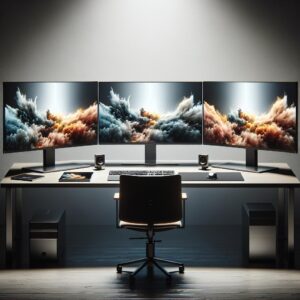
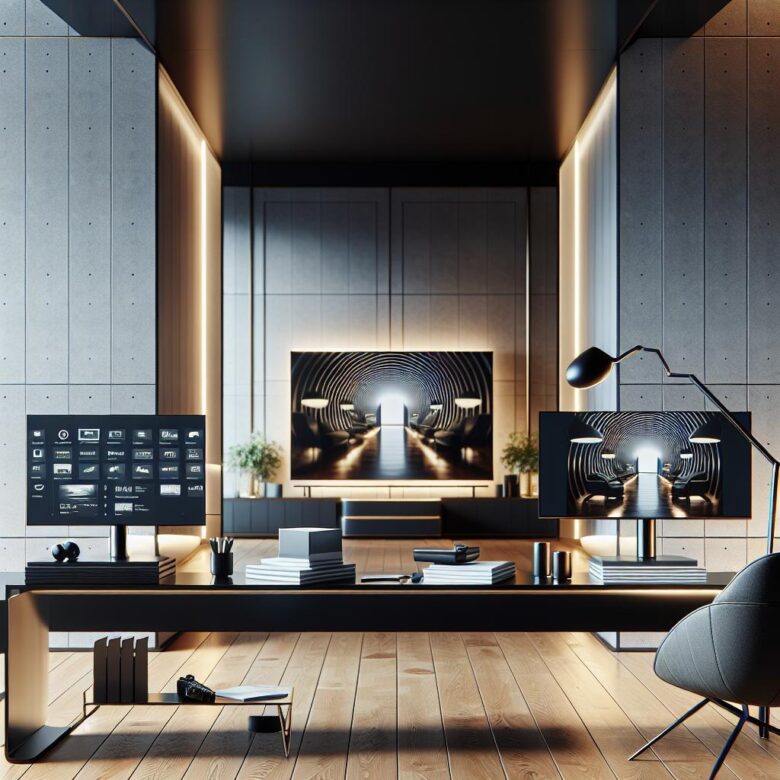
Could the wrong screen be quietly sabotaging your home office? What looks like a simple choice between a smart TV and a smart monitor can affect your focus, comfort, and even how productive you feel by the end of the day.
A smart TV gives you size, streaming, and an easy entertainment crossover, but that same living-room DNA can become a drawback when you need sharp text, ergonomic flexibility, and all-day desktop performance.
A smart monitor, on the other hand, is built closer to the way people actually work: clearer visuals at short distance, better connectivity for laptops and peripherals, and features designed for multitasking instead of movie night.
Before you buy the biggest screen you can afford, it is worth looking at how each option performs where it matters most: picture clarity, workspace efficiency, eye comfort, and long-term value for your home office.
Smart TV vs. Smart Monitor Basics: Key Differences for a Productive Home Office
What actually separates a smart TV from a smart monitor in a home office? It’s less about screen size and more about what the device is designed to prioritize when you sit in front of it for eight hours. A smart TV is built around lean-back viewing, media apps, and living-room processing; a smart monitor is tuned for desk distance, sharper text rendering, easier input switching, and regular PC-style tasks.
That difference shows up fast in daily work. On a 43-inch TV, a spreadsheet in Microsoft Excel may look impressive from across the room but feel oddly soft at desk range, especially if chroma handling or image processing is optimized for video instead of fine text. A smart monitor, even one with built-in streaming apps, usually gives you cleaner fonts, more predictable scaling, and less wrestling with overscan, sharpening, or motion features you never asked for.
- Smart TV: better speakers, broader entertainment platforms, often cheaper per inch, but not always ideal for close-up productivity.
- Smart monitor: better for multitasking, USB-C workflows, webcam support, and stable desktop ergonomics.
- Shared ground: both can run apps like YouTube or Netflix, but only one is usually pleasant for all-day document work.
Here’s the part people miss. Many TVs still assume you’ll use a remote first and a keyboard second, while a monitor is usually built for immediate interaction with a laptop, docking setup, or single-cable USB-C desk setup. In real home offices, that matters more than app selection.
I’ve seen people buy a budget 50-inch TV for video calls and browser work, then quietly move it to the bedroom a month later because eye fatigue crept in. If your screen is your main work surface-not just a second display-a smart monitor starts with the right priorities.
How to Choose Between a Smart TV and Smart Monitor Based on Workspace, Workload, and Connectivity
Start with the desk, not the spec sheet. If you sit 24 to 30 inches from the screen for six to eight hours, a smart monitor usually fits better because text scaling, pixel density, and eye-level placement are easier to manage on a conventional office setup. A smart TV makes more sense when your “desk” is really a multi-use room and you work from farther back, such as a wall-mounted screen in a studio or guest room office.
Now look at workload. If your day lives in spreadsheets, browser tabs, Microsoft Teams, and side-by-side documents, choose the display that handles sharp small text and predictable window behavior first, even if its entertainment features are weaker. If you mostly review dashboards, present slides, join video calls, or use cloud apps through built-in platforms like Samsung SmartThings or web-based Google Workspace, a smart TV can be perfectly usable.
One quick reality check: HDMI ports matter more than people think. I’ve seen home offices stall because a user had a laptop, webcam hub, and game console but only one full-bandwidth port available, which forced constant cable swapping; that gets old fast.
- Choose a smart monitor if you need USB-C with charging, easier height adjustment, and cleaner wake/sleep behavior with a laptop dock.
- Choose a smart TV if you need larger screen real estate for shared viewing, wireless casting, or couch-to-desk flexibility.
- Check refresh limits, Bluetooth reliability, and whether your platform supports your actual workflow apps-not just streaming.
For example, a financial analyst using two browser windows, Excel, and a VPN client will usually be happier with a 32-inch smart monitor than a 43-inch TV, even if the TV looks more impressive in the room. Bigger is not always better. Bad text rendering and awkward connectivity become exhausting long before screen size feels like an advantage.
Common Buying Mistakes and Setup Upgrades That Improve Home Office Performance
Most bad purchases happen before anyone compares picture quality. Buyers chase screen size, then discover the display sits too high, text looks soft at 125% scaling, or the only free HDMI port is already feeding a docking station. In home offices I’ve helped set up, the expensive mistake is usually mismatch: a TV bought for spreadsheets at arm’s length, or a monitor chosen without checking whether it can charge a laptop over USB-C.
- Ignoring connection workflow: if you switch between a work laptop and a personal desktop, built-in KVM support matters more than one extra inch of screen size. Models that work well with DisplayLink docks or direct USB-C power delivery reduce cable swapping fast.
- Underestimating ergonomics: many TVs still have fixed stands and low VESA flexibility, which creates neck strain on long Microsoft Teams or Zoom days. A monitor arm or a low-profile VESA mount often improves productivity more than upgrading resolution.
- Buying for brightness, not text handling: high peak brightness looks great in store demos, but office comfort depends more on matte coating, subpixel structure, and how clean 4:4:4 chroma appears from your actual seating distance.
One quick example: a designer using Figma on a 43-inch TV may love the canvas space, then hate the fuzzy UI because the set defaults to overscan and video processing. Switch to PC mode, disable motion features, and pair it with a proper wireless keyboard tray-suddenly the setup becomes usable.
Small upgrade, big difference. Add bias lighting behind the screen, a separate webcam at eye level, and an external speakerphone instead of relying on built-in TV audio. The display matters, sure, but the surrounding setup often decides whether the desk feels efficient or exhausting.
Summary of Recommendations
Final takeaway: the better choice depends on how you actually work. If your home office revolves around productivity, sharper text, easier multitasking, and long hours at a desk, a smart monitor is usually the smarter investment. If you want one screen to handle both work and entertainment from across the room, a smart TV offers more flexibility.
Before buying, prioritize these questions:
- Will you sit close to the screen? Choose a smart monitor.
- Do you want a hybrid work-and-streaming setup? Choose a smart TV.
- Is comfort during daily office use the priority? A smart monitor is the safer long-term pick.
In most dedicated home offices, smart monitors win on usability, while smart TVs make more sense for mixed-use spaces.

Dr. Silas Olive is a leading researcher in display technology and visual ergonomics. With a Ph.D. in Applied Physics, he founded OliveHD to bridge the gap between complex engineering and the everyday user experience. His expertise lies in analyzing panel performance and HDR standards, ensuring that every pixel on your screen meets the highest definition of excellence.